
Link Type Pricing & Markup Configuration
Link type pricing lets you record what each partner charges for a link and automatically calculates the price you sell it for. This article covers how to set up your markup formula in Settings, how to add link types and costs to a partner, and how selling prices are worked out.
Navigation
- Configuring Your Markup in Settings
- Adding Link Types to a Partner
- How Selling Prices Are Calculated
- Frequently Asked Questions
⚙️ Configuring Your Markup in Settings
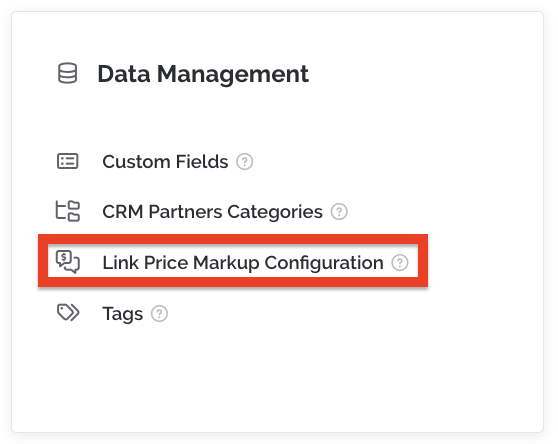
Go to Settings → Link Price Markup Configuration. Everything here applies account-wide, to every partner using the Formula pricing model.
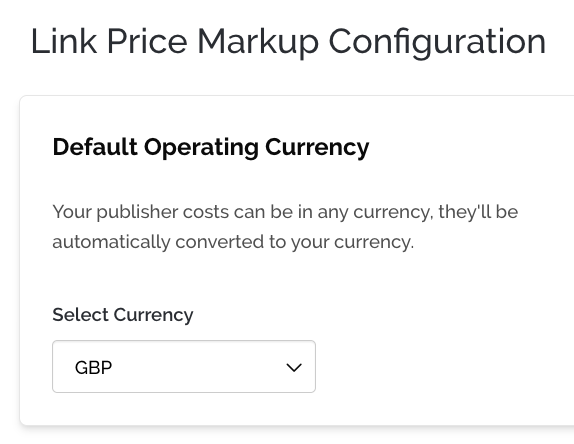
Default operating currency
Choose the currency you sell in from Select Currency (for example, GBP). Partners can quote costs in any currency; they are converted to your operating currency automatically, and all selling prices are shown in it.
Base pricing formula
The Base Pricing tab sets how the standard price of a link is calculated.
- Ahrefs DR Ranges: enter the DR range the formula applies to (for example, 0 to 100 covers every site).
- Standard Link Price Formula: write the formula for that range. Click the { } button to insert variables such as DR, then add operators and numbers (for example,
DR + 100). - Add Ahrefs DR Range: add more ranges if you want different formulas for different site strengths, such as a higher markup for DR 70–100.
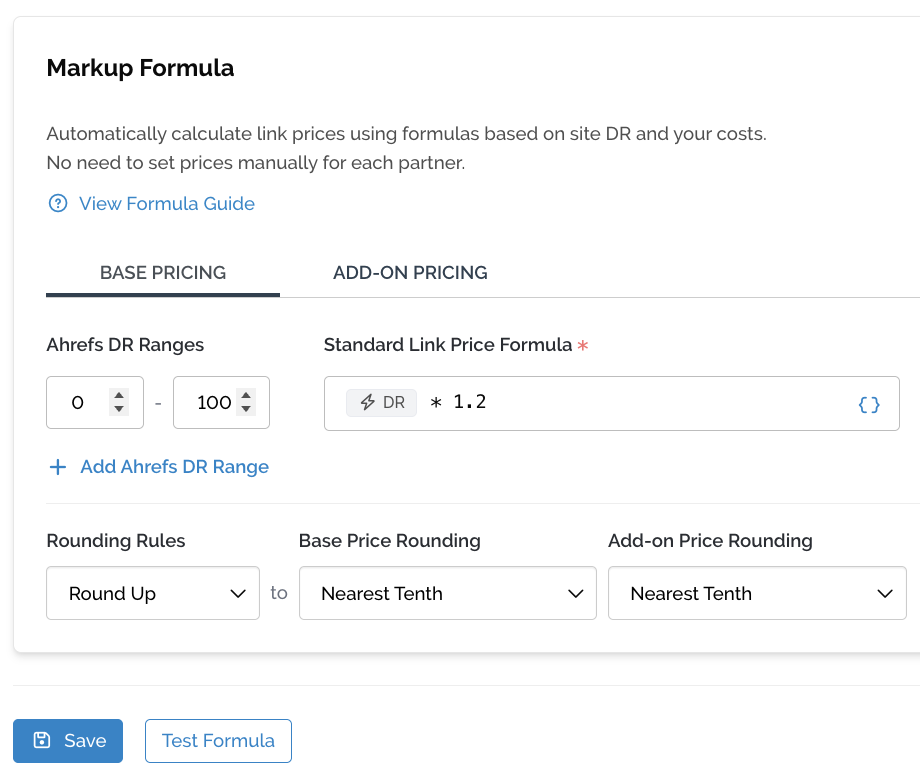
Make sure your ranges cover every DR value you work with, without gaps. For the full list of variables and operators, click View Formula Guide.
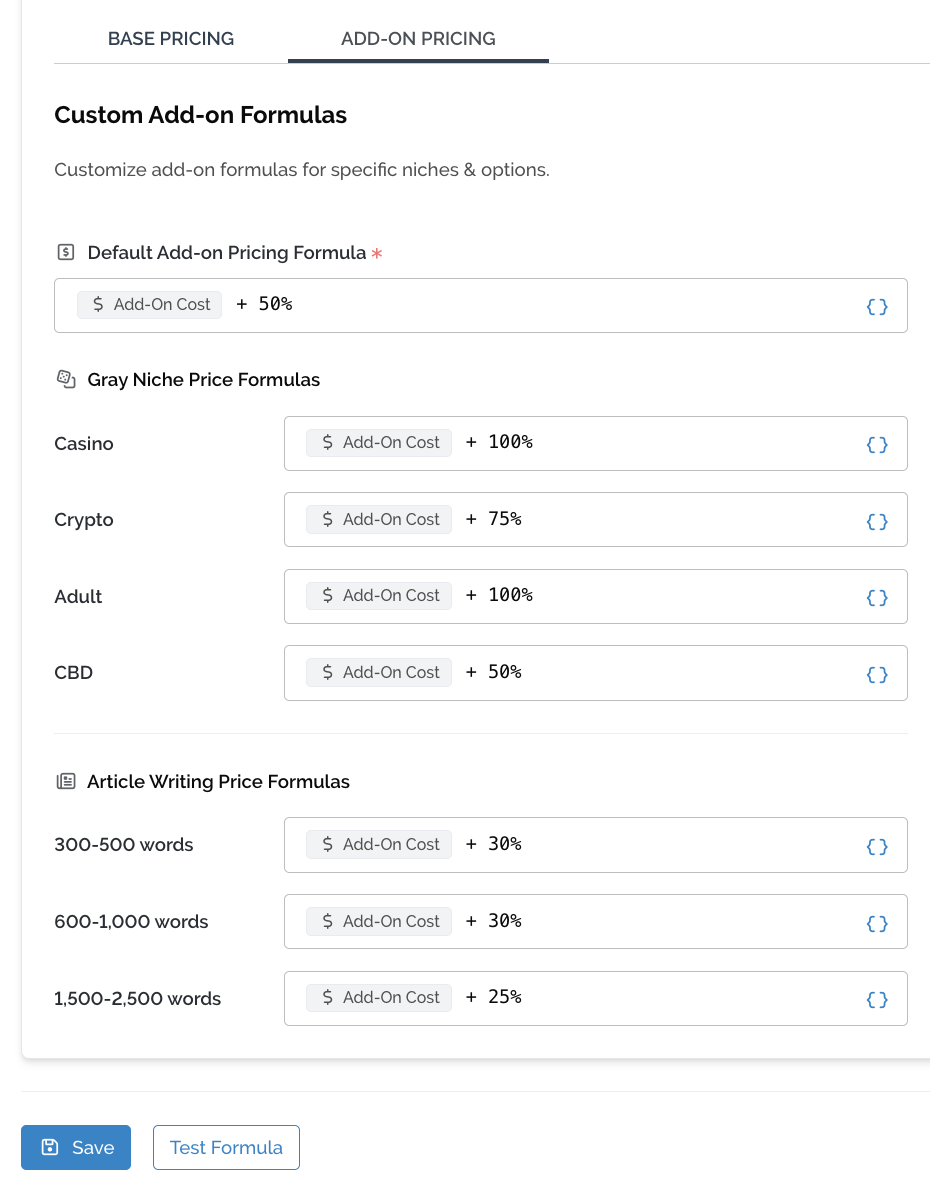
Add-on pricing formula
The Add-on Pricing tab sets how extras are priced, such as gray niche links (Casino, Crypto, Adult, CBD) and article writing options. It works the same way as Base Pricing.
Rounding rules
Rounding keeps selling prices clean.
| Setting | What it does | Example |
|---|---|---|
| Rounding Rules | Direction to round: up, down or to nearest | Round Up |
| Base Price Rounding | Precision for base link prices | Nearest Tenth: £75.56 becomes £75.60 |
| Add-on Price Rounding | Precision for add-on prices | Nearest Tenth |
Saving and testing your formula
Click Test Formula to preview results before going live, then click Save. Partner selling prices update using the new formula.
🔗 Adding Link Types to a Partner
Open CRM Partners, click a partner to open its drawer, and stay on the Info tab. Scroll to Link Types Offered.
Setting the partner's currency and pricing model
- Partner Currency: the currency this partner quotes in (for example, USD). Costs are entered in this currency.
- Pricing Model: choose Formula to have selling prices calculated from your markup configuration in Settings.
Adding a link type
Click + Add New and pick the link type the partner offers, such as Guest Post. Each link type appears as its own collapsible card with two price columns:
- Cost (partner currency): what the partner charges you.
- Selling Price (your currency): what you charge, calculated automatically.
To remove a link type, click the trash icon on its card.
Filling in the link type details
| Field | What to enter |
|---|---|
| Base Price | The partner's standard price for this link type. The converted amount shows underneath, e.g. $100 (£75.60 GBP). |
| Gray Niche Links Allowed | Click Add Cost next to Casino, Crypto, Adult or CBD if the partner accepts that niche, and enter the extra fee. Leave blank if not accepted. |
| Article Writing Options | Click Add Cost for the word counts the partner can write: 300–500, 600–1,000 or 1,500–2,500 words. |
| Buyer Supplied (length) | If you supply the article yourself, set the Min Words and Max Words the partner accepts. |
| Link Type | Whether the link is Do Follow or No Follow. |
| Client-Facing Notes | Notes your clients will see about this link type, such as turnaround time or content rules. |
🧮 How Selling Prices Are Calculated
Each selling price goes through the same four steps:
- Cost entered in the partner's currency (e.g. $100).
- Converted to your operating currency (e.g. £75.60 GBP).
- Formula applied from Settings, using the formula for the DR range the partner's site falls in (base formula for the base price, add-on formula for extras).
- Rounded using your rounding rules.
Reading the price columns
- The small grey figure under a cost is the converted amount in your currency.
- The percentage under a selling price (e.g. +0%) is your markup over the converted cost. +0% means you are selling at cost, which usually means no formula markup has been applied yet.
❓ Frequently Asked Questions
Why does my selling price show +0%? The formula hasn't added a markup to that price. Check that your markup formula is saved in Settings, that the partner's Pricing Model is set to Formula, and that the site's DR falls inside one of your DR ranges.
Can partners quote in different currencies? Yes. Set each partner's currency in the drawer. Costs are converted to your operating currency automatically.
Do I need to update every Partner when I change the formula? No. Saving a new formula in Settings recalculates selling prices for all partners on the Formula pricing model.
Why is a gray niche or writing option showing --? No cost has been entered for it, so it's treated as not offered. Click Add Cost to enable it.
💡 Use Test Formula before saving changes, especially when adding new DR ranges, so you can spot gaps or unexpected prices.
💬 Need more help? Email pitchbox@support.com or use the live chat and our team will be happy to help.