
Automation Builder: Build Your Outreach Workflow on Autopilot
Pitchbox Automations put your busywork on autopilot. ⚡
Build simple When/Then workflows in minutes, with no coding, to tag opportunities, notify your team, archive emails, and assign tasks automatically. This article covers how to create and manage automations, the advanced options available on some plans, and how usage limits work.
Navigation
- Why Use Automations?
- How to Create an Automation
- Managing Your Automations
- Automation History
- Advanced Automations
- Automation and Action Limits
🚀 Why Use Automations?
Automations take the repetitive steps out of outreach so your team can focus on building relationships and landing links.
- Save time every day. Tagging, archiving, adding notes, and creating tasks happen automatically instead of click by click.
- Turn your SOPs into rules. If your team always follows a certain process, automate it so it runs the same way every time, no matter who is working.
- React faster. Get a Slack notification the moment a campaign finishes prospecting or an opportunity gets its first reply.
- Keep your account organized. Tags and tasks are applied consistently, so your opportunities are always easy to filter and follow up on.
- Connect your other tools. Send webhooks to pass Pitchbox events to the rest of your workflow.
🛠️ How to Create an Automation
Admins and Users on your account can create and manage automations by going to Settings > Automations. No coding is required. You can start from one of the pre-built automations or create your own custom automation.
Start with a pre-built recipe
Not sure where to begin? The Automation Builder includes ready-made Automation Recipes for the workflows teams use most, so you can be up and running in a couple of clicks. For example, you can send a Slack message when an opportunity receives its first reply, add an opportunity note when an opportunity is tagged or untagged, send a Slack message and a webhook when a campaign finishes prospecting, or automatically send a chase-up email when a chase-up matures. Pick a recipe to use it as is or tweak it to fit your process.
Recipes marked Advanced Automation are available on plans that include Advanced Automations. If none of the recipes fit, click + Create Custom Automation to build your own from scratch.
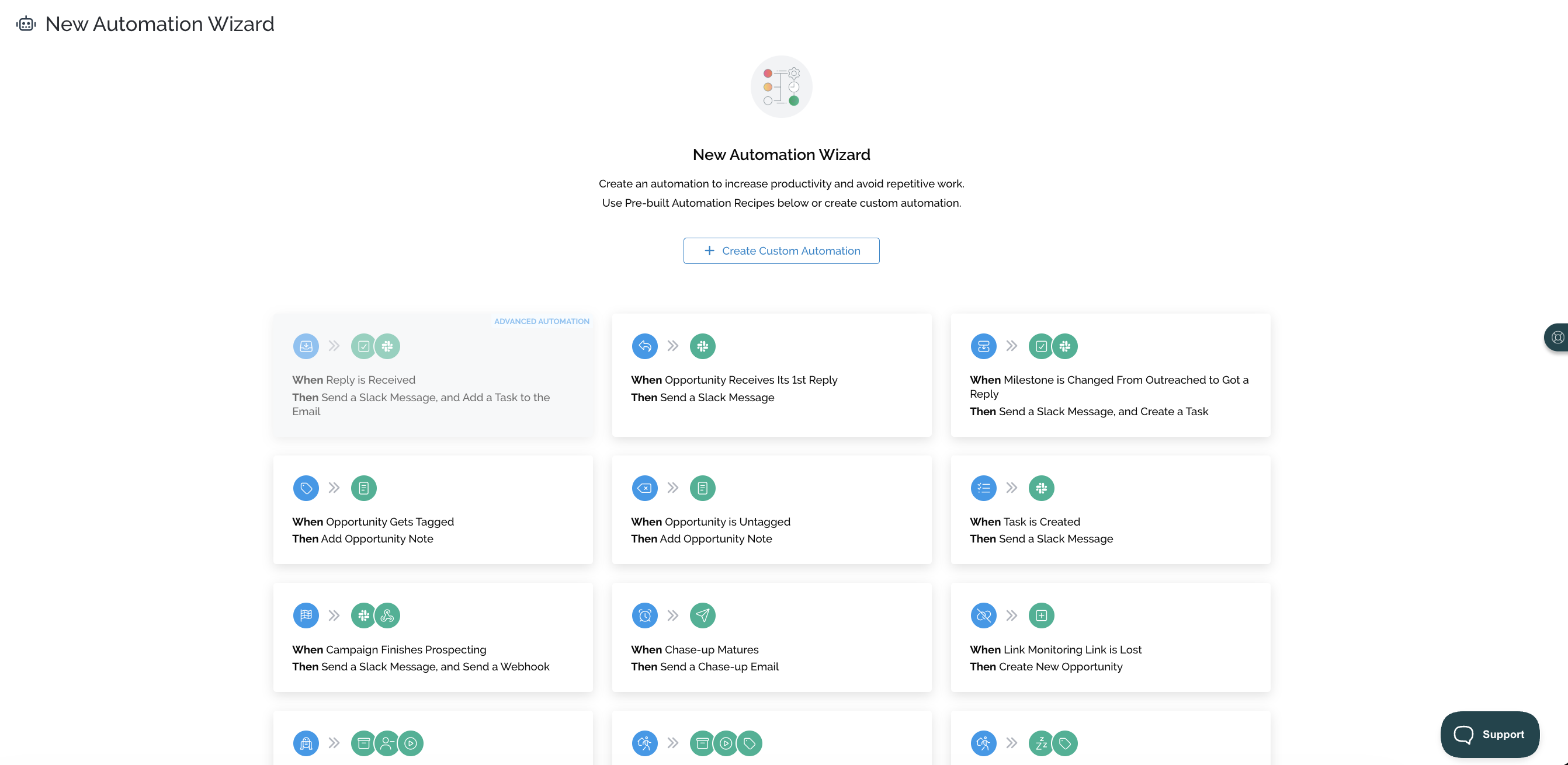
Create a Custom Automation
1. Name your automation
Click + Create Automation and give your automation a name. You can always change the name later.
2. Set up the trigger ("When This Happens")
The trigger is the "when" moment: the catalyst for your automation. Available triggers:
- Opportunity milestone is changed
- Opportunity receives its first email reply
- A new task is created
- Task is completed
- Campaign outreach started
- A campaign is finished prospecting
- Chase-up is matured
Next, choose whether the automation applies to All Projects or specific ones. You can also add conditions to the trigger so the automation only applies to specific opportunities, campaigns, email accounts, and so on.
3. Set up the action ("Then Do This")
The action is the "then" moment. The actions available depend on the trigger you selected. Available actions:
- Delete email
- Archive email
- Remove contact from opportunity
- Add a tag
- Remove a tag
- Add a note to opportunity
- Notify Slack
- Add task to opportunity
- Send webhook
Depending on the action, you may need to define parameters. For example, if your action is to add a tag, you will need to select which tag should be added.
⚙️ Managing Your Automations
Once an automation is created, you can:
- View & Edit its settings
- Test the Automation
- Duplicate it
- View its History
- Refresh Stats
- Remove it
- Disable and enable it
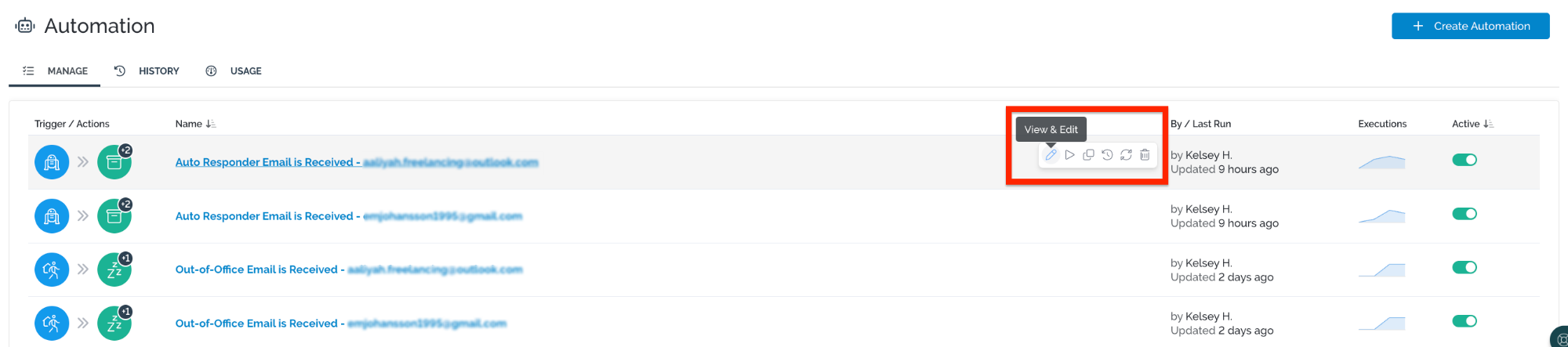
Default automations for connected email accounts
When you connect an email account, Pitchbox automatically adds default automations for it, so you're ready for out-of-office and auto-responder replies from day one. Each default automation is named after its trigger and the email account it covers, such as Auto Responder Email is Received - name@example.com or Out-of-Office Email is Received - name@example.com. You'll find them on the Automations page alongside your own, where you can view, edit, or disable them like any other automation.
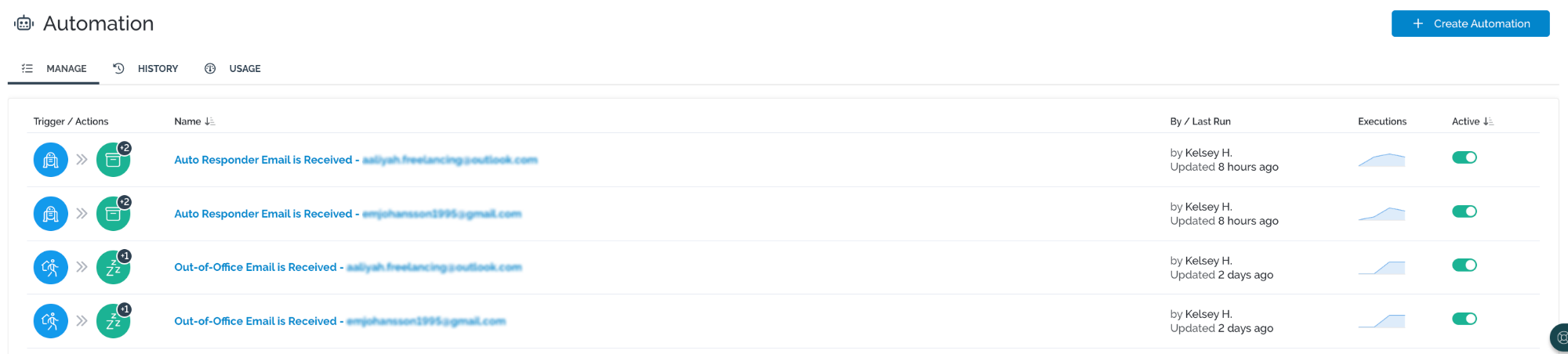
Prefer to set things up yourself? You can turn off auto-added automations in the automation builder settings.
🕓 Automation History
The History tab on the Automations page shows every time your automations have run, so you always know exactly what Pitchbox did and when. Each entry shows the run's status, its trigger and action, the automation's name, and when it was executed.
Use Filter to narrow the list down and find the runs you're looking for. Then click on any history item to open its action log, which gives you further information about what happened during that run.
Your Opportunity Details page will also leave a note when an automation has fired for that opportunity.
✨ Advanced Automations
Depending on your plan, you may have access to Advanced Automations, which add the following triggers and actions.
Advanced triggers:
- New Out of Office email is received
- New Auto Responder email is received
- Any inbound reply is received
- Outreach email sent
Advanced actions:
- Snooze email
- Resume outreach
📊 Automation and Action Limits
Depending on your plan, your account has a set number of automations available, plus a number of actions that can be used each month. To view your account's limits, go to the Usage tab on the Automations page.

What is an action?
An action is counted each time an automation fires, meaning each time a "Then Do This" action occurs, one action credit is used.
For example, if you have an automation that notifies Slack when a campaign has finished prospecting, it uses one action each time Slack is notified.

Reaching your limit
If you reach your automation or action limit, contact your Customer Success Manager to increase your account's limit.