
AI Conversation Agent - Frequently Asked Questions
Setup & Configuration
Q: Do I need to configure all three AI Agent sections before the AI Agent can go live?
A: Yes. You'll need to complete all three key steps:
- Define the campaign goal
- Provide the agent instructions
- Set the exit criteria
Q: Can I use the same AI Agent across multiple campaigns?
A: Yes. This is especially useful when you have multiple campaigns with similar strategies and goals, but targeting different niches.
To apply the same AI Agent across multiple campaigns:
AI Agents → AI Reply Agents → hover over the agent → Apply to Campaigns → select the campaigns you'd like to update.


This lets you copy the agent configuration across multiple campaigns in bulk, saving time and ensuring consistency.
Q: Can I reference a specific personalization field in my Agent Instructions?
A: Yes, you can instruct the agent to reference specific custom fields, the Opportunity URL (target post), or the domain name.
To do this, open the Agent Builder and type / to bring up the available field tokens, then select the fields you'd like the agent to use.


Q: How specific does my Campaign Goal need to be?
A: The more specific your Campaign Goal is, the better your AI Agent will perform. Think of it as giving the agent a clear definition of success. For example, instead of a broad goal like “build links,” try something more specific, such as:
“Get the prospect to agree to publish our guest post on their site. If they have conditions (pricing, guidelines, topic preferences), work toward an agreement that meets both sides. The conversation is successful when they confirm they will publish or provide clear next steps for submission.”

Q: Can I edit the AI Agent after it's already live on a campaign?
A: Yes, you can edit the AI Agent even after it's live on a campaign. Any changes you make apply immediately, and the agent will use the most recent configuration when handling incoming emails — replies are always generated based on the latest version of your settings.

Q: What is the difference between AI Reply and AI Chase-Up?
A: AI Reply handles responses to incoming emails, generating replies based on the message it receives.
AI Chase-Up is optional and is used to automatically follow up with leads who haven't responded. Enable it if you want the system to run automated follow-up sequences and keep conversations moving forward.

Q: I can't see my AI Agent in my project. How can I fix this?
A: AI Agents need to be assigned to specific projects before they can be used. If you can't see your AI Agent:
AI Agents → AI Reply Agents → select the agent from the left panel → use the top menu → Assign to Project → apply it to the relevant projects.


Q: Should I start with Draft Mode or Automatic Mode?
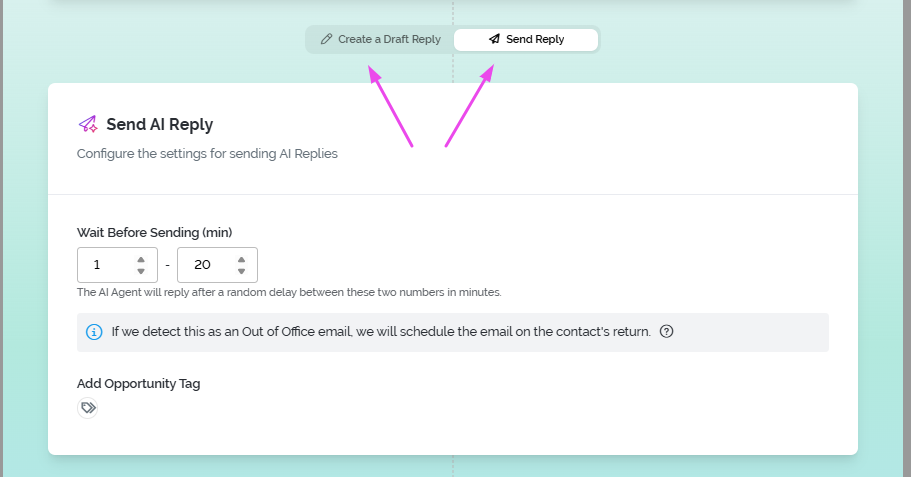
A: In your Playbook, start with Draft Mode if you want more control and prefer to review each AI-generated reply before it's sent.
Once you've tested your templates across a few different scenarios and you're confident in the responses, switch the same Playbook to Automatic Mode. This lets the agent send replies automatically and helps you scale your conversation management more efficiently.
2. Behavior & Replies
Q: Will the AI Agent send replies without me reviewing them first?
A: It depends on the mode selected in your Playbook:
- Draft Mode — the AI Agent generates replies but does not send them automatically. They're saved as drafts for you to review and send manually.
-
Automatic Mode — the AI Agent sends replies automatically, without requiring your review, based on the rules and configuration you've set.
Q: Does the AI Agent send replies based on my campaign outreach schedule?
A: No — and that's by design. 🥇
Your campaign outreach schedule controls your automated outreach sequence (Email 1, Email 2, Email 3); its job is to make initial contact and prompt a response. Once a prospect replies, the goal shifts to keeping the momentum going while they're engaged, rather than waiting for the next scheduled send window.
For example: your campaign runs Monday–Friday, but a prospect replies Saturday at 3am. Rather than leaving them until Monday, the AI Agent steps in after a short delay to respond naturally and keep the conversation alive.
In Automatic Mode it sends the reply for you, and in Draft Mode it writes the reply instantly, ready for you to review when you're back. This can help you keep a lead warm if they replied outside business hours.
Q: How does the AI Agent know what tone to use?
A: The AI's tone of voice is determined by the AI Agent Instructions you provide. In the Instructions section, you can define how the AI should communicate, including your preferred tone, writing style, negotiation approach, pricing guidelines, topics to discuss, and even example responses. The more specific your instructions, the more closely the AI will match your desired communication style in every reply.

Q: Does the AI Agent read the entire conversation history before replying?
A: Yes. If conversation history is available, the AI Agent reviews previous messages in the thread before generating a reply, which helps it respond appropriately based on what's already been discussed.
Q: Why is the AI Agent skipping my messages?
A: If the Agent is skipping messages, it usually means the conversation doesn’t meet the conditions required for the AI Agent to respond.
For example, If the message falls outside your Campaign Goal, Instructions, or Exit Criteria, the AI may intentionally skip it or flag it for human review.


Q: What happens if someone says they aren't the right contact and gives me a new one?
A: If a conversation is redirected to a different contact, the AI Agent will treat this as a new context.
Steps
1. Acknowledge and proceed
The AI can confirm the update and skip the message.
2. Skip the conversation for manual update
Once skipped so you can update the contact details, and restart the automation so the AI continues with the correct recipient.
This ensures conversations stay accurate and aligned with the right contact at all times.
Q: What happens if a prospect asks something outside the AI's instructions?
A: The AI will do its best to respond based on the information and rules it has been given. If it can't confidently handle the request, depending on your configuration it may generate a draft for review, or skip the message and flag the conversation for your attention.
To get the best results, make sure your instructions cover the most common questions, scenarios, and decision-making rules the AI is likely to encounter.
Q: Will the AI Agent ever send a reply I'd completely disagree with?
A: The quality of the AI Agent's replies depends on the guidance you provide. The more detailed your Campaign Goal, Instructions, Examples, and Exit Criteria, the more closely the agent will follow your preferred approach.
If it encounters a situation outside its instructions, it will generate a draft for review or skip the message and flag it for your attention, rather than guessing.
If you're introducing a new AI Agent, use Preview AI Reply Samples in the AI Agent dashboard to test responses against real emails.

For a specific edge-case email already in your inbox, open the AI Agent dashboard, select “Pick Email,” and choose the message you want the agent to practice on.

You can also enable Draft Mode in your chosen Playbook so the agent prepares replies for your review before sending — a good way to fine-tune your setup before moving to full automation.
Q: Does the AI Agent work on all campaign types?
A: Yes. The AI Agent works across all campaign types because it operates within your inbox and responds to incoming conversations, regardless of how the campaign was originally created.
If different campaigns have different goals, workflows, or negotiation strategies, you can create separate AI Agents and Playbooks with their own Instructions, Campaign Goals, and Exit Criteria — tailoring each agent to that campaign's specific objectives.
Q: How does AI Agent work if I'm using Email Rotation on my campaigns?
A: The AI Agent works seamlessly with Email Rotation.
Whether you're using a single email or multiple emails in a rotation, the AI Agent will always respond using the same email address that originally received the conversation.
This ensures continuity in the thread and keeps the conversation consistent from the prospect’s perspective.
Q: What happens if a contact asks to unsubscribe while AI Agent is handling the conversation?
A: If a prospect replies with “unsubscribe”, Pitchbox automatically detects this and immediately adds the contact to the Do Not Email List, blocking all further communications
At the same time, the opportunity is automatically marked as a Loss.
This happens before the AI Agent processes the message, meaning the AI will not attempt to respond or engage with that contact.
Q: What happens if I have Pitchbox Automation already looking after some messages?
A: If you already have Pitchbox Automation managing certain opportunity- or communication-related tasks, those automation rules will run first. The AI Conversation Agent will only process messages after any applicable automation rules have been executed.
This makes the sequence explicit: Automation first → AI Conversation Agent second.
Q: Can the AI Agent reference my campaign personalization data?
A: Yes, if you've enabled “Include Personalization Data,” the AI Agent can use the insights you've collected about a prospect to make its replies more relevant and personalized.
To enable this: AI Agents → AI Reply Agents → hover over your agent → Edit → toggle “Include Personalization Data” on.

3. Control & Oversight
Q: Can I step in and take over a conversation the AI is handling?
A: Yes. There's a short delay between a reply being received and the AI Agent processing it (configurable under the Playbook).
If you manually respond during that window, the AI Agent will not act on that message, and the conversation stays under your control unless the prospect sends another reply — at which point the AI Agent can step back in based on your configuration.

Q: Can I see usage per AI Agent and per Playbook?
A: Yes. Go to your AI Agent Dashboard from the top-right corner. There, you can review the table on the right-hand side to see usage distribution by agent. You can also view usage distribution by Playbook under the AI Playbooks tab.


Q: Where do I see what the messages AI has sent on my behalf?
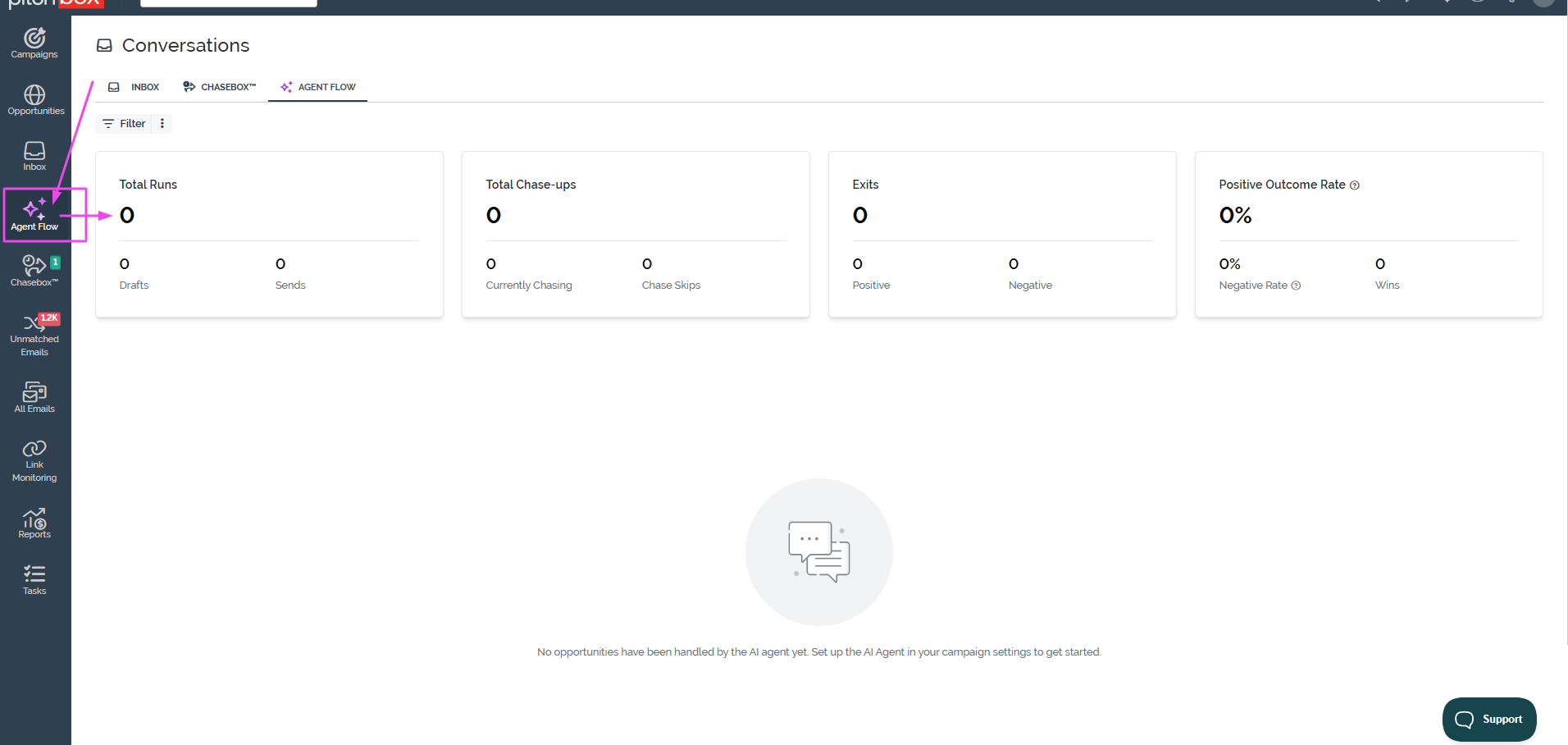
A: Inside your project, the AI Agent Flow Dashboard gives you a clear overview of how your AI Agent is performing, including:
- Runs — the number of times the AI Agent generated and sent a reply
- Chase-Ups — the number of automated follow-up messages sent
- Exits — conversations that reached a defined outcome and were successfully completed
-
Outcomes — a breakdown of conversation results, including positive and negative outcomes
Q: Can multiple AI Agents be assigned to the same project?
A: Yes. This is especially useful when you have different campaign strategies, workflows, or use cases within a project.
Each AI Agent can have its own goals, instructions, playbooks, and exit criteria, allowing it to handle specific types of conversations more effectively.
Q: What happens if I manually reply to a conversation the AI is handling?
A: The AI Reply Agent will stop handling that message once you manually reply.
It only works on conversations that are awaiting a response in the inbox, so after a manual reply, the Agent will not step back in unless the prospect sends a new response.
However, if AI Chase-Up is enabled, the system can still attempt to re-engage the lead if they stop replying, using your configured follow-up rules.
Q: Can I pause an AI Agent?
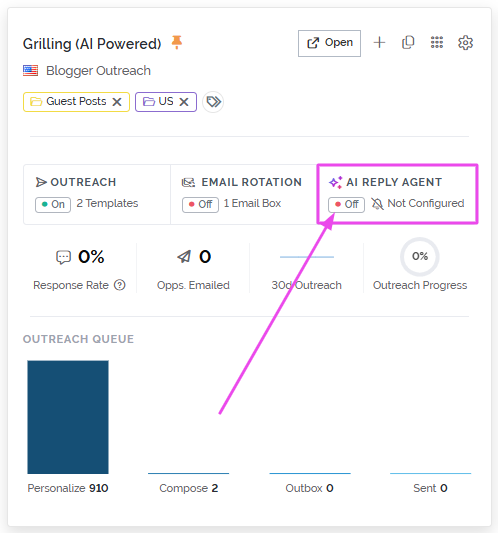
A: Yes, you can enable or disable an AI Agent at any time on a per-campaign basis from the Campaign Card's AI Reply Status setting. The Campaign Card always displays the current status, so it's easy to see at a glance whether the AI Agent is active or disabled.
- Use campaign-level controls when you want to enable or disable the AI Agent across the entire campaign.
-
Use tags and stop rules when you want to control behavior at the individual opportunity level.
3. AI Agent Credits & Usage
Q: What uses an AI Agent Credit?
A: Credits are consumed each time the AI Conversation Agent processes a communication, including messages that are ultimately skipped.
Q: How many AI Agent Credits do I have?
A: The number of AI Agent Credits available to you depends on your team's current plan. To view your available credits, go to Account Settings → Billing Plans. Under Account Usage, you'll find the AI Agent Credits section, which shows your current credit allocation and usage.
Q: What happens if I run out of AI Agent Credits?
A: Once you have used all of your available AI Agent Credits, the AI Conversation Agent will stop processing new communications until additional credits become available or your credit allocation is increased. Any existing Pitchbox automations and standard workflows will continue to function as normal.
Q: Does AI Agent come with all Pitchbox plans?
A: AI Agent availability and the number of included AI Agent Credits depend on your team's current Pitchbox plan. To see whether AI Agent is included in your plan and review your available credits, visit Account Settings → Billing Plans.