
Understanding and Improving Your Response Rate
Your response rate shows the share of contacted opportunities that replied to your outreach. This article explains how response rate is calculated, where to find it, how to choose between counting all replies or genuine replies only, and what to check if your response rate is low.
Navigation
- What is Your Response Rate?
- Where to Find Your Response Rate
- Template Metrics
- Choosing How Response Rate is Calculated
- Common Causes of Low Response Rates
- How to Improve Your Response Rate
📊 What is Your Response Rate?
Your response rate is the share of emailed opportunities that replied after you contacted them. Each opportunity counts once, however many replies it sends, and outreach sent through contact forms counts too.
For example, if you outreached to 100 opportunities and 55 of them are marked as "Got a Reply," your response rate is 55%.
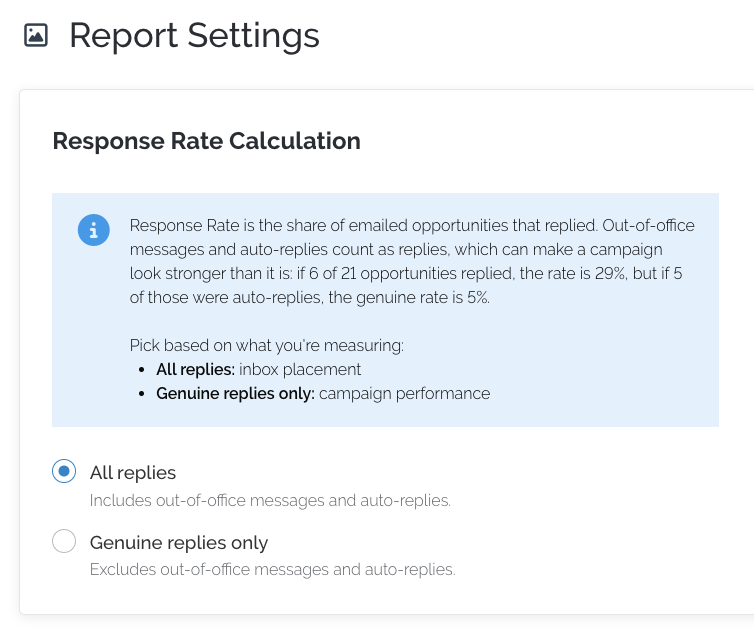
You can choose your Response Rate Calculation in your Report Settings: all replies or genuine replies only.
📍 Where to Find Your Response Rate
You can see your response rate in three places:
- Campaign cards: each campaign card shows its overall response rate.
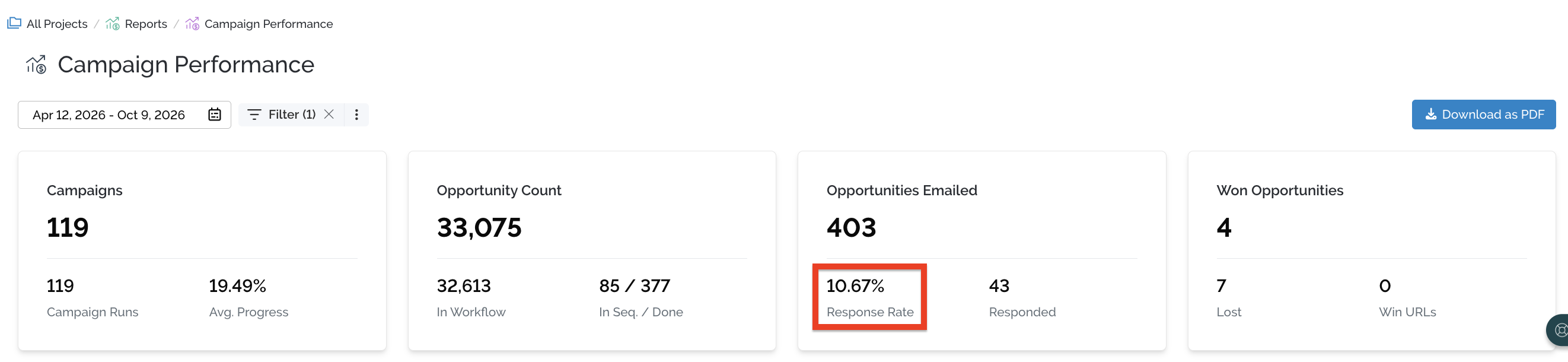
- Campaign Performance Report: compare response rates across campaigns. See Campaign Performance Report.
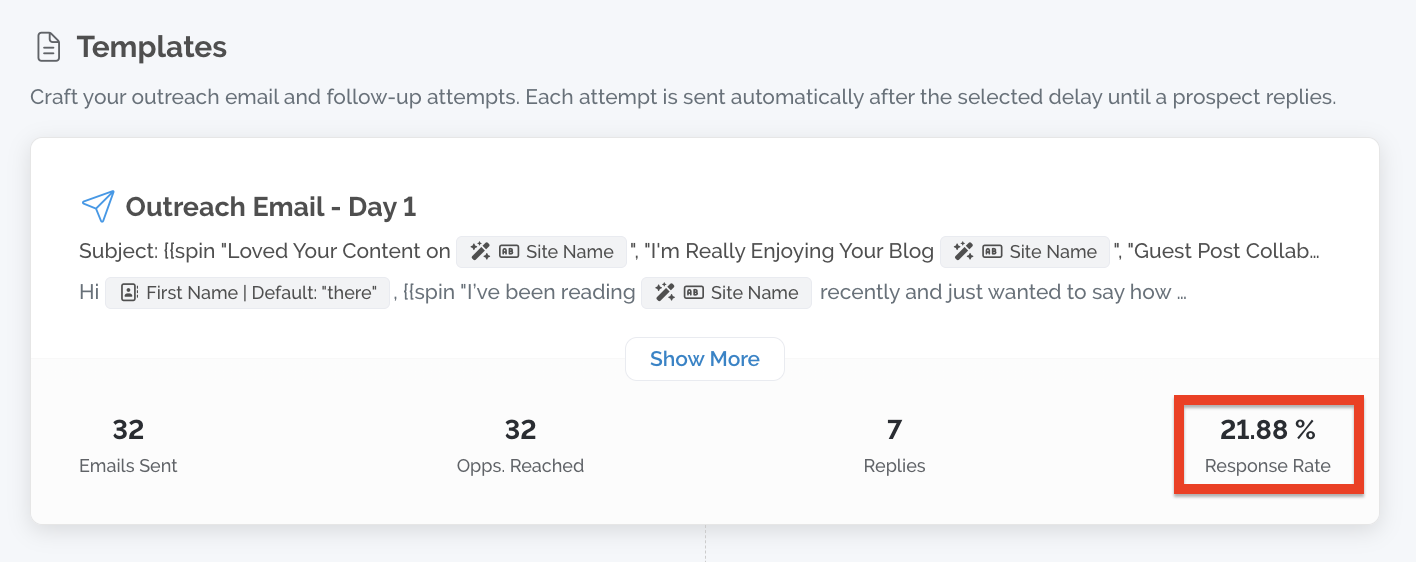
- Template metrics: see how each email in your sequence performs.
Response Rate is calculated the same way everywhere it appears, including project cards, reports, CSV exports, Looker Studio, the API, and MCP.
✉️ Template Metrics
For campaigns that have sent or are sending outreach, open Campaign Settings, then go to Templates & Email Sequence. Each attempt shows these metrics:
| Metric | What it counts | Example |
|---|---|---|
| Emails Sent | Individual emails sent with that template | Emailing kevin@abc.com and rufus@xyz.com = 2 emails sent |
| Opportunities Reached | Opportunities contacted with that template | Reaching out to abc.com and xyz.com = 2 opportunities reached |
| Replies | Opportunities that replied to that template. Each is counted once, against the last email it received before its first reply | — |
| Opp. Response Rate | Replies ÷ Opportunities Reached for that template, within the selected campaign | 33 replies from 161 opportunities = 20.50% |
Use template metrics to spot which attempt in your sequence gets the most replies, and which templates need work.
⚙️ Choosing How Response Rate is Calculated
Account admins can choose whether Response Rate counts every reply or only genuine replies from real people. Go to Settings > Report Settings and find the Response Rate Calculation card.
| Option | What it counts | Best for |
|---|---|---|
| All replies (default) | Every reply, including out-of-office and auto-responder messages | Checking inbox placement |
| Genuine replies only | Replies from real people, excluding out-of-office and auto-responder messages | Measuring campaign performance |
Auto-replies can make a campaign look stronger than it is. For example, 6 replies from 21 opportunities is a 29% response rate. If 5 of those replies are auto-replies, the genuine response rate is 4.8%.
What happens when you change the setting
- It's a global change. It affects all users in your account and updates every Response Rate in Pitchbox: campaign and project cards, template metrics, reports, CSV exports, Looker Studio, the API, and MCP.
- You'll be asked to confirm. When you save a new method, a "Global change to Response Rate" warning appears. Click Apply globally to confirm, or Cancel to leave the page unsaved.
- It applies immediately. The update takes effect as soon as you save.
How auto-replies are detected
Pitchbox detects out-of-office and auto-responder messages automatically after they arrive. Detection can take a few minutes, so a very recent auto-reply may briefly count as genuine. A small number of auto-replies aren't caught.
📉 Common Causes of Low Response Rates
Several factors affect how recipients engage with your emails:
- Email account health: a low domain reputation, or missing or misconfigured SPF, DKIM, or DMARC records, can send your emails to spam or stop them reaching inboxes at all.
- Send timing: the day and time you send can have a big impact on replies. Test different send times to see what works for your audience.
- Template quality: emails that are poorly structured, generic, or contain spelling and grammar mistakes get fewer replies.
- Audience targeting: focus on high-value contacts who are most relevant to your campaign and offer.
- Relevance of your pitch or site: if your message doesn't match the recipient's needs or interests, they're unlikely to reply.
📈 How to Improve Your Response Rate
If your response rate is below 10%, or lower than you expected, run through this health check. Even if things seem to be working, these steps can help you get more from your campaigns.
Here’s a simple step-by-step health check you can follow to make sure you're set up for success:
1) Check Your Email Account Health 📫
Start by navigating to the cogwheel icon in the top-right corner of your screen, then select Deliverability Center.
Next to each connected email, you’ll see a letter grade (A–F) indicating the current health of that email account. This is your MX Right Score. If the score is below an A, it's important to review and address any issues related to your email setup.

In particular, make sure critical DNS records, such as SPF, DKIM, and DMARC, are correctly configured. Missing or misconfigured records can cause your emails to be flagged as spam or blocked entirely, which will have a direct impact on your deliverability and response rates.
2) Review Your Sending Times ⏰
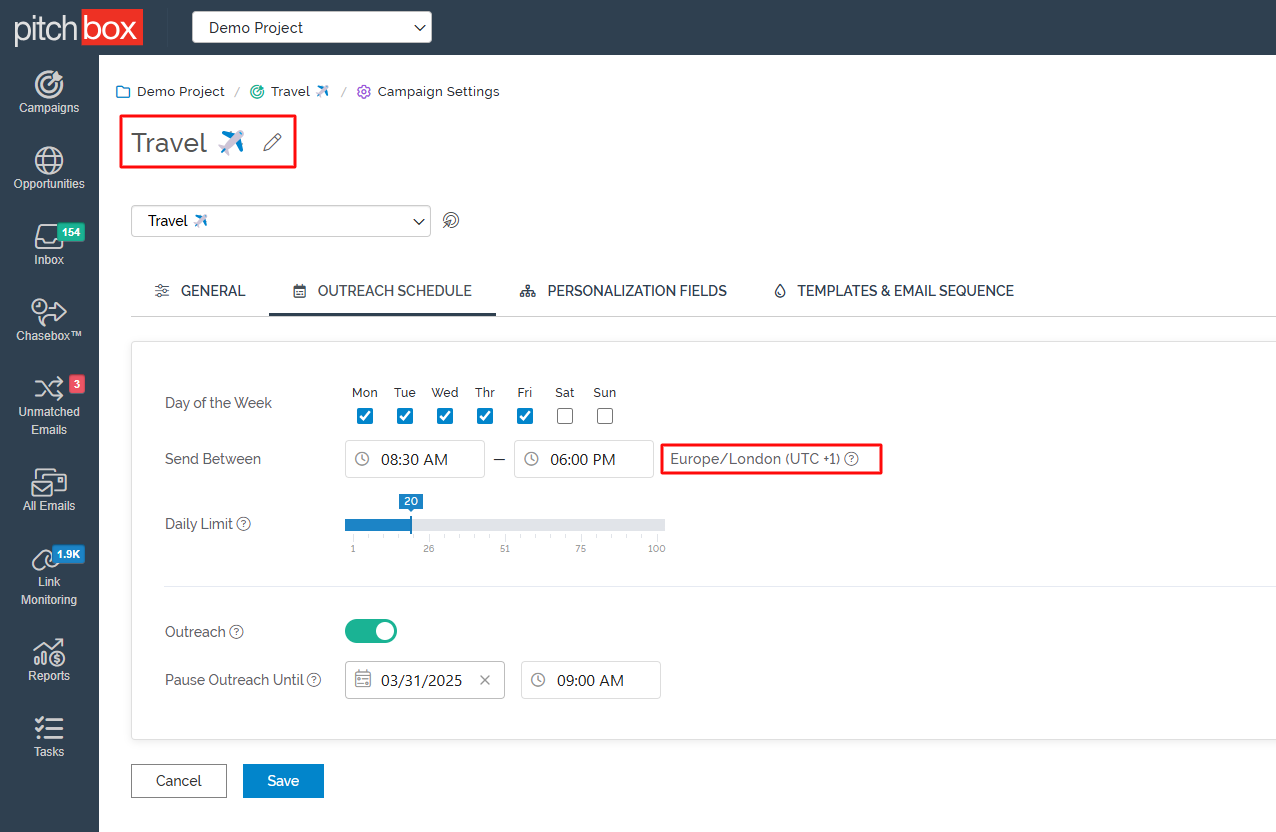
Visit your Outreach Schedule to ensure that your sending times align with the time zones of your target audience. For optimal results, it's best to contact leads during standard business hours in their region, typically Monday to Friday, between 8.30 a.m. and 6 p.m.
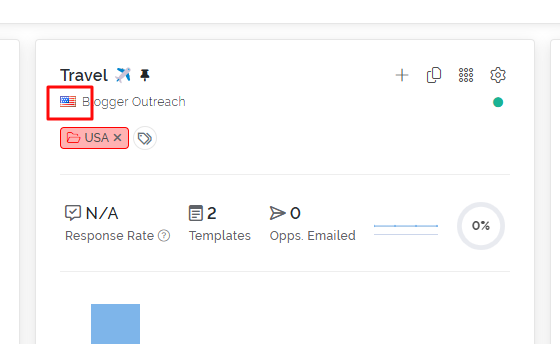
In this example, the campaign is targeting contacts based in the USA, but the current sending time zone is set to Europe/London (UTC +1). This mismatch can affect visibility and response rates.
To ensure your emails reach recipients during U.S. business hours, you have two options:
-
Adjust your sending times to align with U.S. working hours while keeping your current UK time zone. For example, if you're targeting the U.S. Eastern time zone, you could set your sending window to 1:30 PM – 11:00 PM UK time, which corresponds to 8:30 AM – 6:00 PM EST/EDT.
-
Change your sending time zone on the project level to match the U.S. region you're targeting. This is a good option if most of your outreach is focused on U.S.-based contacts. Here's a quick guide on updating your time zone.
3) Focus on Email Content Quality - Check Your Templates!
One of the most important factors in improving response rates for cold outreach, especially in the SEO space, is the quality of your email content. Here's how to optimize your pitch for better engagement:
✅ Keep Your Emails Concise and Purposeful
Aim for 50–125 words. Cold emails that are too long risk being ignored, while ultra-short messages may feel abrupt or incomplete. Keep it focused: clearly state who you are, why you're reaching out, and what value you bring.
✅ Maximize your subject line
The goal of the subject line is to get your email opened, without triggering spam filters or looking like a sales pitch. More specifically, a great subject line should:
- Spark curiosity or relevance: so the recipient feels it's worth opening
- Sound personal or natural: not automated or mass-produced
- Avoid spammy triggers: no "FREE," "URGENT," or excessive punctuation
- Connect to their niche or recent content: e.g., referencing a blog post, podcast, or topic
-
Match the tone of your message: helpful, human, and professional
Here are some examples:
- “Hey {{CNT_FIRST_NAME}}, Quick question about your article on {{MRG_BLOG_NAME}}”
- “Loved your post on {{OUTREACH_DOMAIN}} - I had an idea”
- “Hey {{CNT_FIRST_NAME}}, Collaboration idea for {{OUTREACH_DOMAIN}}”
- “{{CNT_FIRST_NAME}}, I found your site while researching [Topic] - quick idea”
- “Question about {{OUTREACH_DOMAIN}}’s content”
✅ Use Personalization Thoughtfully
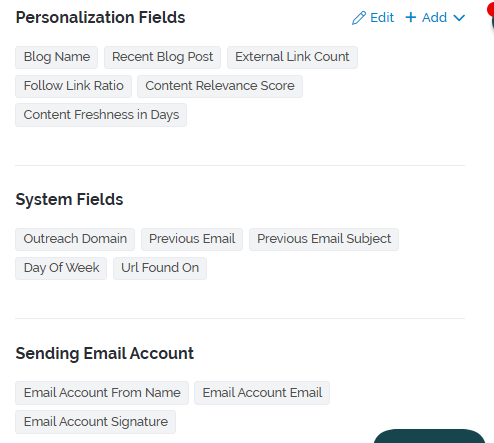
Generic outreach rarely performs well. Use specific details like:
- The recipient's name
- A recent article, post, or project they published
- Something unique about their website or business
✅ Stay Relevant and Targeted
Make sure your message is tailored to the recipient’s business type, and goals. Mass-blasting the same template to everyone reduces effectiveness. Highlight why your offer is specifically relevant to them.
✅ Avoid Spammy Language and Excessive Links
Spam filters are sensitive to overly aggressive or salesy language. Avoid using terms like:
- “Buy now”
- “Earn $$$ fast”
- “Act immediately”
- “Risk-free deal”
Also, limit the number of links (one to two max) to prevent being flagged and to maintain clarity.
✅ Include a Clear Call to Action (CTA)
Let the recipient know exactly what you'd like them to do next. Examples:
- “Would you be open to a quick call this week?”
- “Can I send you more details?”
-
“Is this something you'd be interested in discussing?”
✅ Make It Easy to Respond
Use plain language, and ask easy-to-answer questions. Don’t force the recipient to work too hard to reply.
✅ Proofread for Clarity and Tone
Make sure your message is free from typos, grammatically sound, and has a tone that’s professional but human. Reading it out loud can help catch awkward phrasing.
4. Make sure you're targeting the right people
Review who your campaign is reaching. Focus on contacts who are most relevant to your offer, and prioritize decision-makers such as editors, site owners, or content managers over generic inboxes.
Let a campaign run for at least one week before judging its response rate. Most replies arrive early, but a full week gives you a clearer picture of overall engagement.
💬 Need more help? Email us at pitchbox@support.com or start a conversation with our team via the live chat.